Tuesday, 7 November 2023

PrintNighmare-safe Printer Management

Hello Folks,

Hopefully this post will help many out there who may struggle to emulate a Point-and-Print solution but without compromising the security of the corporate network.

For those new to the topic, Microsoft tightened the security of the printing subsystem as a result of a number of critical vulnerabilities, commonly referred to as PrintNighmare - details here. The fix consists in limiting driver installation to administrators only. To clarify, before the PrintNightmare security measures, end users were allowed to install printer drivers.

Given that lots of administrators have implemented Point-and-Print, this security measure broke printing for lots of organizations. Microsoft provided a workaround, which effectively cancels the security measures, by means of a Registry setting. It is well documented in various places such as this. Basically by implementing the Registry hack, you'd revert back your printing subsystem to its pre-patch, vulnerable state  by allowing end users to install printer drivers.

The core of the problem is to get the drivers onto the client computers without user interaction.

This post is meant to address the following issues:

  1. Install printer drivers on users' computers.
  2. Eliminate security prompts and user interaction.
  3. Automate the process and centralize administration.
  4. Maintain security (no need to undo Microsoft's security measures via the Registry hack).
  5. Use only built-in tools pre-canned with the operating system.

CAVEAT: I do not claim by any means that it is a perfect solutions. There is plenty of room for improvement. Likely you'll have to adapt it to your needs in case you run a large, multi-department and/or geographically distributed environment. Make it suit your needs.

In a nutshell the process is as follows:

  1. Set up the print server: install drivers, create ports, install, configure and share printers (ensure they are published in Active Directory).
  2. Create a new GPO or nominate an existing one to distribute printers to users. Create shared printer definitions in User Configuration / Preferences / Control Panel Settings / Printers. Link it to the OU holding your users.
  3. Use item-level targeting to define who gets what printer. Also make sure that the process runs in the logged-on user's security context.
  4. On the print server, export device drivers to a shared folder that client computers can access.
  5. Create a new GPO or nominate an existing one to distribute a computer startup script. Link it to the OU holding your client computer objects.
  6. Reboot the client computers to make them run the computer startup script. The script imports the drivers that have been exported at point 4 above. It runs in the System security context, administrator by definition, therefore no security prompt is displayed.
  7. Users will be connected to their printers as defined in the GPO at point 2 above.
At points 2 and 5, depending on your environment, you may use a single, dedicated GPO linked to both user and computer OUs (or to the domain root to that matter if such is your environment - I recommend against it though).

At the core of the solution there are two PowerShell scripts:
  1. A server-side script running on the print server that exports drivers.
  2. A client-side script running on client computers that imports pre-filtered drivers of shared printers.
We will not go into configuring GPOs and shared printer setup as it is well documented on the Internet. The 7 steps above should provide sufficient information to get you started.

Following is the two-step process to set up the scripts.

I. Setting up the print server

The following is to be done on the print server:
  1. Create a folder to store the exported drivers, e.g. C:\SharedPrinterDrivers.
  2. Share the folder, e.g. Drivers$ (I like to create hidden shares for such things).
  3. Grant the Domain Computers security group Read permission at share and NTFS level.
  4. Create the driver export script and save it to folder, e.g. C:\Scripts\ExportSharedPrinterDrivers.ps1
  5. Create a scheduled task to run the driver export script on a regular basis.
My suggestion is to run the script daily, early in the morning, before users power on their computers,. This way drivers updated overnight by Windows Updates (or equivalent server maintenance tools) would be captured in the export and distributed to users when they log on.


The driver export script:

Wednesday, 18 October 2023

List Details of AD-joined Servers

Hello again,

I had a task recently to install an update on a number of AD domain-joined servers. I had to make sure that no server was missed.

In my case checking that all servers are at a given build number was sufficient.

Here is the one-liner that will display this information:

$arrServers = @(); Get-ADComputer -Filter * -Properties OperatingSystem | ?{$_.OperatingSystem -match "Server"} | sort Name | ForEach-Object {$Name = $_.Name; $OS = $_.OperatingSystem; $Version = $null; $Build = $null; $osDetails = $null; $osDetails = Invoke-Command -ComputerName $Name -ScriptBlock {Get-ItemProperty "HKLM:\SOFTWARE\Microsoft\Windows NT\CurrentVersion"}; if ($osDetails.CurrentMajorVersionNumber) {$Version = $osDetails.ReleaseId; $build = $osDetails.CurrentMajorVersionNumber.ToString() + "." + $osDetails.CurrentMinorVersionNumber.ToString() + "." + $osDetails.CurrentBuildNumber.ToString() + "." + $osDetails.UBR.ToString()}; $arrServers += New-Object -TypeName PSObject -Property @{Name = $Name; OS = $OS; Version = $Version; Build = $Build}}; $arrServers | ft

Open PowerShell as Administrator and simply paste the script.

To be noted that it does no error handling except for checking for the existence of the CurrentMajorVersionNumber value of the "HKLM:\SOFTWARE\Microsoft\Windows NT\CurrentVersion" Registry key as a rudimentary means to filter out old operating systems. If you'd like something more sophisticated then you'll want it turned  into a proper script with all the bells and whistles.

However, for a one-off quick check it does the job.

Sample output:


Have a great scripting day!


Friday, 6 October 2023

Find Entra Connect / AADConnect Versions in Partner Tenants

Hello again,


I have been tasked to find out which of our M365 client tenants need their Entra Connect / AADConnect agent updated. Came up with this little script:


Connect-MsolService

$tenants = Get-MsolPartnerContract

$arrCI = @()

ForEach ($tenantId in ($tenants).TenantId) { $arrCI += Try { Get-MsolCompanyInformation -TenantId $tenantId -ErrorAction Stop} Catch { "Error" } }

$arrCI | ?{$_.DisplayName} | sort DisplayName | select DisplayName,DirSyncClientMachineName,DirSyncClientVersion,DirectorySynchronizationStatus


Tweak it to your liking.

Monday, 29 May 2023

Enable Remote Event Log Access

I was in a situation recently when I had to collect RDS host logon details from a farm with 20-odd servers. While I already had a script that collected this kind of information from another set of servers, it didn't work on this particular farm.

As it turned out, the firewall blocked RPC access to event logs. I had to enable the "Remote Event Log Management (RPC)" firewall rule on each server.

Yes, it can be done manually one by one. No, that's not how I prefer to do things at scale.

Run this one-liner as administrator on the RDS Broker server to do it the quick way:

(Get-RDServer -Role RDS-RD-SERVER).Server | ForEach-Object { Invoke-Command -ComputerName $_ { Set-NetFirewallRule -DisplayName "Remote Event Log Management (RPC)" -Enabled true }}

More generically, you can run the following to achieve the same for any firewall rule on an arbitrary list of servers:

@("SERVER1","SERVER2", ..., "SERVERn") | ForEach-Object { Invoke-Command -ComputerName $_ { Set-NetFirewallRule -DisplayName "display_name_of_firewall_rule" -Enabled true }}

Replace -Enabled true with -Enabled false to disable the rule.

A word of caution: since we are playing with firewall rules on a large number of servers, one wrong parameter will have a spectacular effect in a bad way - have your your resignation letter handy. Before you unleash your custom code on your entire infrastructure, make sure you've tested it thoroughly.

You've been warned.

Have fun!


Tuesday, 17 August 2021

PrintNightmare Nightmare

Hello folks, Zoltan again. This time with a printer story.

The short version: Have you installed the August 2021 update, KB5005030n update and started seeing the infamous "Do you trust this printer?" warning? Well, learn to live with it or disable the security measures implemented by the update.

The meat around the bone: as a consultant and system admin, I've deployed numerous systems where printers are deployed and administered centrally using Microsoft's Point and Print technology. Moved all local and shared printers from individual PCs to a central print server. Give a user a new laptop, join the domain, and (s)he'll get all the printers. Life's good. Or so it was until PrintNightmare has been identified and Microsoft released its August 2021 security update, KB5005030.

The update changes the the security model of the Point and Print driver installation, requiring administrative approval to install or update signed or unsigned printer drivers. Yes, signed drivers too. From the article:

Since then, August the 10th 2021 that is, users who installed this update and their printers are installed via Point and Print, have been plagued with this warning, unable to print their documents:


The gist of it: all, (and by that Microsoft means ALL) computers running the Print Spooler service, workstations included, are vulnerable to the PrintNightmare vulnerability and therefore Microsoft's approach is to block all non-administrative users from installing printer drivers. Or stop printing altogether (no joke, see more about it further down).

As at now there are two realistic options:

1 - Whenever the warning appears, call the admin to input administrative credentials to install the driver. Depending on your environment you may have hundreds or thousands of workstations, each with multiple printers, each requiring administrative attention.

2 - Roll out the following Registry value to practically undo Microsoft's security measures and revert back to the original behavior. Beware, this way you'll expose your network to the PrintNightmare threat:

Registry location: HKEY_LOCAL_MACHINE\Software\Policies\Microsoft\Windows NT\Printers\PointAndPrint
Name: RestrictDriverInstallationToAdministrators
Type: DWORD
Value: 0

More details in Microsoft's MSRC team's blog and in the KB5005652 (CVE-2021-34481) article.

Microsoft touts a 3rd option, disabling the Print Spooler service, practically going back to pre-printer era of making hard copies (a.k.a. pen and paper with your own two little hands). From the article:


Now that you know your risks and options, you can start working out your long-term corporate printing strategy.

Enjoy :-)

Friday, 5 March 2021

Stuck in Pending Reboot Cycle

Hello again,


Microsoft released a bunch of security updates on March 2, 2021 (KB5000871) addressing a number of Exchange server vulnerabilities. Details here. But that's not the point of this post.

Exchange admins, myself included, started rolling out the update. However in one instance a server was stuck in a "pending reboot" state:


The information for pendingreboot is stored in the Registry. Not wanting to rediscover the wheel, searched for an easy way out: a script which looks for entries that control pending reboots.

Came across Adam Bertram's article. He not only has a good list of Registry entries to check, but provided a PowerShell script also to make it easy.

Using his script I quickly found that the RebootPendinig Registry key was present. The script in its original form only shows whether it is pending reboot or not, but it doesn't show which key or value it is. I altered the script to show this detail also:

Checking in Registry Editor confirmed it:


Please note that it is an empty key. Its sheer presence will trigger the pending reboot condition.

For more on this key see this Microsoft Scripting Guy article.

Having rebooted the computer, it was safe to delete the key. But...:


The fix:

  1. Took ownership of the key. The original owner is System.
  2. Added myself with Full Access permissions.
  3. Delete the key.

Once the key was deleted, the patch installed just fine.

Until next time.


Wednesday, 21 August 2019

"Important" Update Bound to Break Your Exchange Server. Again.

Hi There,

I've done a routine manual patching of one of the Windows 2012 R2 servers, and, instead of hitting the Install button, as many of us do (they are all "Important" updates after all so why not just install them all, right?), I looked at what is going to be installed.

To my surprise I saw .Net Framework 4.8 on the list:


WHAAAAT??? .Net version upgrade as "Important"?

Yes, Microsoft is doing it again: they are shoving it down the throat without thinking of the consequences. They ruined a couple of Exchange servers about a year ago - more details here.

A word of advice:

  • Don't just blindly accept all updates just because they are listed as "Important".
  • Have your Exchange patched to the latest CU.
  • Consult the Exchange .Net supportability matrix.

The Exchange team has put up this warning on its .Net supportability matrix:


Specific for hybrid deployments, if you want to stay supported, you must run the latest, or the immediately previous release of Cumulative Updates / Update Rollups - see here. If you have, for instance, a Hybrid Exchange 2016 on CU12, hence supported (at the time of this writing), and don't want to update to CU13 just yet, then think again: a routine Windows Update exercise may bring your messaging system to its knees:


Thank you .Net team, yet another not-so-well-done upgrade.


Thursday, 18 July 2019

550 5.4.316 Message expired, connection refused (Socket error code 10061)

In a recent engagement of Exchange migration to O365 the client started experiencing random inbound delivery failures. The error in the NDR was that in the title:


Research pointed to a couple of articles that all suggest checking the firewall:

  • O365 sources blacklisted/quarantined by an over-zealous Fortigate IPS rule - https://pariswells.com/blog/research/office-365-failed-550-5-4-316-message-expired-connection-refusedsocket-error-code-10061
  • Microsoft's own experience and recommendation - https://docs.microsoft.com/en-us/office365/securitycompliance/mail-flow-intelligence-in-office-365
It turned out to be not a firewall, but a case of asymmetric routing. Close enough. A new device has been introduced into the customer's environment to set up a VPN with a sister company at around the same time when the first delivery error reports started to came in. Setting up the VPN affected routing, resulting in egress/ingress SMTP traffic to/from the same source took very different paths.

Once routing has been corrected, email started to flow normally again.

Till next time.

Saturday, 3 November 2018

New Office Build Causes Credentials Prompt Loop

Another day, another challenge.

We've just provisioned a brand new laptop with a brand new Office (latest build) for a user. Yet we could not configure a mail profile: it kept prompting for credentials, no matter what we did. We tried DOMAIN\samAccountName as well as UPN to no avail.

The user is in a hosted Exchange environment with a UPN of domain.local on Exchange 2013.

Interestingly other users worked well.

To cut the long story short, it looks like the newest Office build requires that the domain component of the user's UPN matches the domain component of the primary SMTP address. The user components need not match.

Here is what failed and what worked in my test:
  • DOMAIN\samAccountName FAILED
  • user@domain.local FAILED
  • UPN fully matches email address WORKED
  • domain components of UPN and email address match, user components are different WORKED
Office builds that displayed this behavior are 1809 and 1810. Older builds worked with any of the above combinations. In my troubleshooting I used the latest Office 365 suite, 16.0.11001.20064 at the time of this writing, which failed/worked as described above.

Is it a bug? Is it Microsoft silently pushing users to adhere to standards imposed by Office 365 EXO? Can't tell. The fact is that it looks like we are being forced to adopt consistency. Not necessarily a bad thing, although without adequate documentation on Microsoft's part it is going to cause some major headaches in a number of organizations.

Lessons learned: start sticking to de facto standards and best practice: match users' UPN to their primary SMTP address.

Have a nice weekend.

Friday, 27 July 2018

Microsoft Builds Licensing Engine into the Exchange HCW

Hi There,

I am critical when Microsoft bricks my servers with dodgy updates, but I also give them kudos when due. Happy to say that it is kudos time.

In its July 20, 2018 update of the HCW, Microsoft added a welcome feature. As you may already be aware, in a hybrid environment where there are no local mailboxes anymore and the on-prem Exchange server is there purely for administrative purposes, you're eligible for a free Hybrid license. If you didn't know then click here to find out more. It used to be a separate process, a separate tool, thus extra time and administration.

Not anymore. If you run the HCW on a new, unlicensesd server, the first thing you'll notice is a big red message telling you that you are running an Unlicensed Product, and the Next button is grayed out. Also, the Version information states that the server is a "Standard Evaluation Edition".

Don't freak out. If you look closer, you now get a link to license this server now:


Click the link and you'll be prompted to log on to your O365 tenant admin account:


The wizard then goes on to validate the environment, then obtain and install your free, brand spanking new Hybrid edition license:


Once the license is in, you are given access to the Next button, and the rest of the process is pretty much the same as before. As an added feature, you are also given a copy product key link which reveals not only the product key in clear text, but the entire PowerShell command that was used to install it also - it's there just as an FYI, the wizard did it all for you.


If you restart the HCW, you'll notice that Standard Evaluation version has been updated to Coexistence Edition:


Pretty cool, huh?

Till later,
Zoltan

Monday, 16 July 2018

.NET Framework 4.7.2 Breaks AAD Connect and Exchange

Hi There,

Time for a new post.

Microsoft made .Net Framework 4.7.2 available on Windows Update on 10 July 2018, just about a week ago. As an "Important / Recommended" update, it gets under the radar at many organizations where all "Important" updates are installed as default practice. .NET updates used to come as "Optional". This time, however, Microsoft deemed this update "Important" for whatever odd reason that escapes me.

Although Microsoft "strongly recommends" the installation of this update, reports have emerged that it doesn't play nicely with AAD Connect. and Exchange. Specifically, CPU utilization of the Microsoft.Identity.Health.AadSync.MonitoringAgent.Startup.exe process goes through the roof, grinding the server to a halt:


Secondly, Microsoft has not (yet) updated the Exchange server prerequisites to reflect support for .NET Framework 4.7.2 - see https://docs.microsoft.com/en-us/exchange/plan-and-deploy/system-requirements:


Sure enough, the update bricks the Exchange OWA and ECP portals too. After you log on, you get a pristine, white browser window, devoid from anything:


I thought OK, let's rebuild some virtual directories. Well, for that I need EMS - as long as it works. It fell flat too:


In fact, looking at the IIS logs, it becomes clear that pretty much everything has gone south.

As recovery steps, first I removed .Net 4.7.2 as some sources indicate on the Internet. Unfortunately that didn't fix the AAD Connect high CPU problem - it returned after an hour or so. And it certainly didn't fix the Exchange problem.

As far as Exchange is concerned, I tried the following:

  • Removed .Net 4.7.2
  • Removed and reinstalled .Net 4.7.1
  • Installed Exchange 2013 CU21 - the server was a tad outdated, on CU13

No joy. The screenshots above were taken after the recovery attempt.

My recommendation to you, dear reader, is to block the installation of .Net 4.7.2 for the time being. It is NOT an "important" update, no matter how much Microsoft would like you to believe.

The update can be blocked with a Registry setting, as documented at KB4342394.

I am in for rebuilding the Exchange server bricked by Microsoft's (not so) "important" .Net update. Thank you Mr. Microsoft, yet another .Net blunder to add to the list.

Happy patching!

Add-Endum

Microsoft has come to its senses and re-published .NET Framework 4.7.2 where it belongs, under "Optional" updates.


Friday, 20 April 2018

Changing the Garbage Collection Mode on MSExchangeMapiFrontEndPool

Hi There,

I stumbled on a script at https://gallery.technet.microsoft.com/office/Exchange-2013-Performance-23bcca58, referenced by https://blogs.technet.microsoft.com/rmilne/2015/04/06/exchange-2013-performance-health-check-script/.

Ran the script on an Exchange 2013 system, and among others, it threw an error for the MSExchangeMapiFrontEndAppPool using Workstation garbage collection mode instead of Server mode:


Not being a .Net developer, looked up the issue, and all sources that I could find indicated that the garbage collection should be configured for Server mode for improved performance. Just as the script said.

I was (and still am) gobsmacked as to why the Exchange team chose this mode while everything else is optimised to the extreme.

The script is great, kudos for Marc Nivens, except it doesn't provide any reference as to how to go about changing the garbage collection mode, which would be very helpful for folk like me who aren't developers.

So here is how to do it:

First, we need to find where garbage collection is configured. For that we need to identify the configuration file for the .Net application. There are a number of ways, two of which are shown below:

1. The DOS way:


1
%WINDIR%\System32\Inetsrv\appcmd list apppool "MSExchangeMapiFrontEndAppPool" /text:"CLRConfigFile"


2. The PowerShell way (in case you want to script it):

1
2
3
[System.Reflection.Assembly]::LoadWithPartialName("Microsoft.Web.Administration") | Out-Null
$serverManager = new-object Microsoft.Web.Administration.ServerManager
(($serverManager.ApplicationPools | ?{$_.Name -eq "MSExchangeMapiFrontEndAppPool"}).Attributes | ?{$_.Name -eq "CLRConfigFile"}).Value


Essentially the file is %ExchangeInstallPath%\bin\MSExchangeMapiFrontEndAppPool_CLRConfig.config

Open the file in an elevated Notepad and change the <gcServer enabled="false" /> line to <gcServer enabled="true" />. Here is the file with the default value:


After the change (and a server restart) I got this status:


A word of caution: When a new CU is installed then it overwrites the config file, thus reverting back the garbage collector to Workstation mode. Don't forget to update the file again after the CU is installed.

Reference: https://msdn.microsoft.com/en-us/library/cc165011(v=office.11).aspx

Happy garbage collecting!

Monday, 25 December 2017

Assign or Remove O365 Licenses

Hi Folks,

Here is a script for managing O365 licenses. Get it from the TechNet Gallery.

If you work with O365 then sooner or later you''ll be asked to assign some licences - or remove them to that matter - to more than just one user. Using the portal will take forever.

A PowerShell script is the natural option, but it may be daunting to get the hang of the licensing object structures and to get your head around building a DisabledOptions list of services of what NOT should be enabled as opposed to just say "this is enabled, that is not".

I've put together a script which will do it all: it will enable or disable a particular service within a plan.

The script implements an interactive, user-driven flow of actions, which resembles the way NTDSUTIL or DISKPART work.

Prerequisites: You'll need the Microsoft Azure Active Directory Module for Windows PowerShell.

How it works:

1. Create a text file with all the UPNs for all the users who will have a license assigned or removed. No header line, just a list of UPNs:


In this example we have 3x valid users, 1x non-existent user and 1x incorrectly formatted user - will see its significance later in this post.
2. Run the script:

Manage-O365Licenses.ps1 -InputFile "Your_Text_File_With_UPNs.txt" -Location CountryCode

where the country code is the ISO 3166 Alpha-2 two-letter code of the country that the users will be assigned to. For the full list of country codes see https://www.iso.org/obp/ui/#search/code/.

For example, if your users' UPNs are listed in Users.txt and they are all in Australia, you would use the following command ...:

Manage-O365Licenses.ps1 -InputFile Users.txt -Location AU

... or simply launch the script with no parameters at all and it will prompt for the file and location:

Manage-O365Licenses.ps1


NOTE: If your users are distributed across different countries then you'll have to run the script separately for each country. It doesn't allow for mixing locations in one run.

If you happen to be already connected to O365 (you ran Connect-MSOLService previously and authenticated successfully) then the script will move on to the next step. Otherwise it will prompt for credentials, then it will connect to O365.

3. Select what you want to do: Disable or Enable licenses:


Select 0 or 1 and press Enter, or X to exit.
Your selection will be confirmed in green (see next screenshot).

4. Select the plan. Same process: enter a number, or X to exit:


Some plans are exposed in PowerShell, however they are hidden in he GUI. I couldn't identify a reason. If it isn't in the GUI then probably it shouldn't be touched. These show up as "--- not available for selection in the Portal ---".

Also, the list only contains the plans that I have come across, and it is probably incomplete, or Microsoft will come up with new ones. If you come across such a plan then its cryptic name will be displayed with "(no friendly name found)" appended, similar to the following:


For the record, the screenshot is a simulation of what you may encounter. The SPE_3 plan is the equivalent of "Microsoft 365 E3", and I removed the definition for the sake of illustration. It is back in the version that's available for download in the TechNet Gallery.
5. Select the service. Same process: enter a number, or X to exit. For illustration, I typed a couple of invalid selections to demo how it is handled:


6. Then a last chance of change of heart: review your selections and select Y or N:


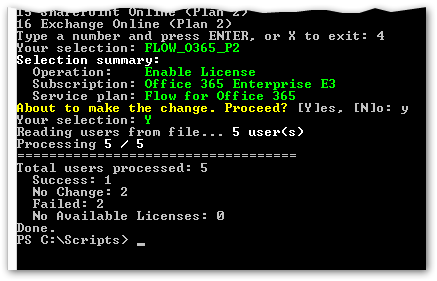
The script runs and displays the statistics:


What do the stats mean? Let's open the license.log file:


There is an entry for each user:


  • SUCCESS: The operation has completed successfully for the user.
  • NOCHANGE: The license is already at the desired state, no change needed.
  • FAIL: The user does not exist in the organization (e.g. fakeuser@yourorg.com.au) or it failed format validation (e.g. gibberish is not in the correct format).
  • NOAVAILABLELICENSE: Ran out of licenses (not illustrated here).


WARNING: The script overwrites the log file! If you want to preserve the logs between different runs then move or rename the file before you run the script again.

The scripts will also catch some errors. In case an error is caught, a debug.log file is created. It is only created if a cmdlet generates one of those red errors.

Just like the license.log file, debug.log is wiped every time the script runs. However it is only created if a cmdlet generates an error. It looks like this ...:


... and its associated entry in the license.log file:


Some error handling features:

  • Validation of input file. Exits if it doesn't exist.
  • Validation of country code. Exits if it is invalid.
  • Graceful exit if credential input is cancelled.
  • Graceful exit if wrong credentials are provided.
  • Graceful handling of invalid selection input (out of range or invalid characters).
  • Option to exit at any point.
  • UPN format validation.
  • Existing user validation.
  • Licence count validation.
  • Catches some error conditions with error details in debug.log. No error, no log.
  • Detailed record of changes and other stats in license.log (not an error but good to have).

Licence Agreement

The scripts are licenced under the NMF (Not My Fault) agreement.
Edit, change and use the scripts at your own risk.
Give credit where due.

Download: Manage-O365Licenses.ps1

Enjoy :-)


Saturday, 11 November 2017

Exchange 2016 CU7 Bug Causes HCW to Fail

Hi There,

If you plan to deploy a hybrid Exchange server using Exchange 2016 CU7, then don't. It's broken. Use a pre-CU7 server instead.

A bug slipped into Exchange 2016 CU7 which prevents the HCW from completeing. The HCW fails to get past the domain ownership validation:


No matter how hard you try, you can't get past this screen.

Looking at the HCW log at C:\Users\<username>\AppData\Roaming\Microsoft\Exchange Hybrid Configuration, the following errors are logged:

*ERROR* 10300 [Client=UX, Thread=1] System.ArgumentOutOfRangeException: The UTC time represented when the offset is applied must be between year 0 and 10,000.
                                Parameter name: offset
                                   at System.DateTimeOffset.ValidateDate(DateTime dateTime, TimeSpan offset)
                                   at System.DateTimeOffset..ctor(DateTime dateTime)
                                   at Microsoft.Online.CSE.Hybrid.App.AppData.BuildSessionProperties(NotificationType type)

...

*ERROR* 10277 [Client=UX, Activity=Domain Ownership, Session=OnPremises, Cmdlet=Set-FederatedOrganizationIdentifier, Thread=14] FINISH Time=2598.6ms Results=PowerShell failed to invoke 'Set-FederatedOrganizationIdentifier': Object reference not set to an instance of an object. An unexpected error has occurred and a Watson dump is being generated: Object reference not set to an instance of an object.

...

*ERROR* 10224 [Client=UX, Page=DomainProof, Thread=14] Microsoft.Online.CSE.Hybrid.PowerShell.PowerShellInvokeException: PowerShell failed to invoke 'Set-FederatedOrganizationIdentifier': Object reference not set to an instance of an object. An unexpected error has occurred and a Watson dump is being generated: Object reference not set to an instance of an object. ---> System.Management.Automation.RemoteException: Object reference not set to an instance of an object.
                                   at System.Management.Automation.Runspaces.AsyncResult.EndInvoke()
                                   at System.Management.Automation.PowerShell.EndInvoke(IAsyncResult asyncResult)
                                   at Microsoft.Online.CSE.Hybrid.Provider.PowerShell.PowerShellProvider.PowerShellInstance.Invoke(String cmdlet, IReadOnlyDictionary`2 parameters, Int32 millisecondsTimeout)
                                   --- End of inner exception stack trace ---
                                   at Microsoft.Online.CSE.Hybrid.PowerShell.RemotePowershellSession.RunCommandInternal(Cmdlet cmdlet, SessionParameters parameters, Int32 millisecondsTimeout, PowerShellRetrySettings retrySettings, Boolean skipCmdletLogging)
                                   at Microsoft.Online.CSE.Hybrid.Session.PowerShellOnPremisesSession.SetFederatedOrganizationIdentifier(SmtpDomain accountNamespace, String delegationTrustLink, SmtpDomain defaultDomain)
                                   at Microsoft.Online.CSE.Hybrid.App.ViewModel.Pages.DomainProof.DomainInfo.AddFederatedDomain(IOnPremisesSession session, AppData appData)
                                   at System.Collections.Generic.List`1.ForEach(Action`1 action)
                                   at Microsoft.Online.CSE.Hybrid.App.ViewModel.Pages.DomainProof.VerifyActivity(IOnPremisesSession session, EnvironmentBase environment)

Issues with the HCW have also been reported by admins on Rhoderick Milen's blog at https://blogs.technet.microsoft.com/rmilne/2017/09/19/exchange-2016-cu7-released/. 

Microsoft is aware of it, and a fix will be included with CU8. Some suggest using a pre-CU7 server to run the HCW on - I haven't tried, not (yet) an option in the affected environment.

Update:

  • Tried running the HCW on a CU6 server that I installed temporarily. Since the CU7 server was still selected as the hybrid server, the wizard FAILED.
  • Tried the workaround suggested by AloneInTheDarK. While some reported success, it didn't work for me - see https://social.technet.microsoft.com/Forums/en-US/3ac7cfe6-6c97-4f68-84b9-d498aafd4ea1/exchange-2016-cu6?forum=Exch2016Adm. Microsoft advised that it is not a recommended workaround, even if it would have worked.
  • Downgraded the CU7 server to CU6. SUCCESSFUL. It involved:
    • Installed a temporary CU6 server to host all the mailboxes specific to Exchange 2016 while the CU7 server was downgraded (Arbitration, AuditLog etc. - see http://ezoltan.blogspot.com/2016/06/delete-that-stubborn-exchange-2016.html and see https://technet.microsoft.com/en-us/library/mt441791(v=exchg.150).aspx). This is needed so that the CU7 server can be uninstalled.
    • Uninstalled Exchange 2016 CU7 and deleted the binaries from the installation folder.
    • Installed Exchange 2016 CU6 on the same machine.
    • Configured the downgraded server (virtual directories, certificate etc.), and moved all system mailboxes back to it..
    • Uninstalled the temp Exchange 2016 server.
    • Ran the HCW wizard - SUCCESSFUL
It looks like Microsoft has a hotfix. At this time I don't know whether it will ever be published as CU8 is due in the near future, but if you are in dire need then open a case and request the hotfix. I didn't get to test because it came in one day late, after I went through the downgrade ordeal.

Take care,
Zoltan

Friday, 20 October 2017

Don't Use the 32-bit Version of PowerShell on Windows Server 2016!

You fire up your new Server 2016 and want to install the Exchange 2016 prerequisites. You launch PowerShell and discover that Install-WindowsFeature isn't found:

Install-WindowsFeature : The term 'Install-WindowsFeature' is not recognised...


You want to import the ServerManager module, only to be greeted by another error:

Import-Module : The specified module 'ServerManager' was not loaded because no valid module file was found in any module directory.


You do all sorts of black magic to make ServerManager load, perhaps you copy C:\Windows\System32\WindowsPowerShell\v1.0\Modules\ServerManager to C:\Users\<your_account>\Documents\WindowsPowerShell\Modules\ServerManager. You'll eventually get to load ServerManager, and you breathe easy - until you try to install the prerequisites. Then comes the shock:

Install-WindowsFeature : The target of the specified cmdlet cannot be a Windows client-based operating system.


WHAAAT? Heck, your're machine is Server 2016!

Well, my friend, did you notice the "(x86)" bit in your PowerShell window's caption?


Yes, you're running a 32-bit PowerShell on a 64-bit server.

I can't blame you, it's easy to just type PowerShell and hit Enter. The problem is that the default selection may bring up the link for the wrong architecture:


The fix? Launch the 64-bit version of PowerShell and you'll be laughing.

Enjoy.

Wednesday, 23 August 2017

NUMA Optimization on HP Proliant Gen9 Servers

G'day,

I've just come across Ingo Gegenwarth's post about NUMA optimization on HP ProLiant Gen9 servers that may boost a server's performance significantly.

Read his post at https://ingogegenwarth.wordpress.com/2017/07/27/numa-settings/

Cheers,
Zoltan

O365 IDM Bug: DirSync Errors but No Objects in Error

Hi All,

First things first, a Big Red WARNING: The following content applies to the specific context encountered in one of my client's O365 tenant. If you think you should follow it, please be extra careful that you understand the whats and whys of this post. It worked in my environment for my situation. It may not work in yours, or you may have to take additional steps to avoid data loss. If not careful, you MAY LOOSE DATA.

I do NOT accept responsibility for any data loss. Proceed at your own risk.

I recently worked on an issue where the O365 admin portal reported DirSync errors...,


... but when I looked at the detailed list of objects in error, the list was blank:


While I don't know what exactly happened, here is what I think the customer has done, as it makes the most sense:
  • Some users left the company. Their external contacts kept sending e-mail, and these e-mails had to be delivered somewhere so that business wasn't affected.
  • The client's admin decided to delete their mailbox and AD object. Created a distribution list, assigned the departed user's e-mail address, and populated the distribution list with recipients assigned to handle incoming e-mails for the departed users. No idea what happened to the departed users' mailbox content, and it is totally irrelevant for the purpose of this blog.
  • AADConnect deleted the O365 objects by means of AD sync. Consequently O365 moved objects into the Dumpster.
  • AADConnect tried to synch the new distribution groups, however an email address conflict was detected between the objects in the dumpster. The sync succeeded but with errors. For more details see the Duplicate Attribute Resiliency feature described in the first bullet point in the References section at the end of this post.
From this moment on, no matter what was done, the DirSync error persisted.

To fix it, I had to:
  • Purge the old accounts from the O365 dumpster.
  • Delete the distribution groups that were in error from O365 by moving them out of the AADConnect sync scope and having it do an AD sync.
  • Recreate the distribution groups by moving them back into the AADConnect sync scope and having it do an AD sync.

Here comes the long story. You'll need the Windows Azure Active Directory Module for Windows PowerShell.

Step 1: Connect to the O365 tenant with a tenant admin account:

Connect-MsolService

Step 2: List the objects in error:

Get-MsolDirSyncProvisioningError


The command gives us a couple of useful tips:
- a DisplayName
- the conflicting properties in the ProvisioningErrors field

I also searched recipients for any conflicting addresses - no joy.

I checked the O365 dumpster for any deleted accounts. Bingo! Some entries had property values also found in the objects in error.

Step 3: List the objects in the dumpster, along with their proxy addresses. Note that I used the -Wrap parameter in the FT (Format-Table)  command in case the list of proxy addresses is too long, to avoid truncation (type it all on one line).

Get-MsolUser -ReturnDeletedUsers | ft DisplayName,ProxyAddresses -Wrap


In my case the tenant deleted some user accounts for staff who moved on, and replaced them with distribution groups populated with other users who then got the deleted user's e-mails, assigning the departed user's address to the distribution group. Therefore the same e-mail address was on the new distribution group, as well as on the deleted object in the dumpster which wasn't yet purged.

Hint: Purging the dumpster and re-synching AD doesn't solve the problem. It looks like it's a bug in the O365 identity management system. We still need to purge the dumpster but some additional steps are needed, so read on.

Step 4: To remove objects from the dumpster, use the command (type it all on one line):

Get-MsolUser -ReturnDeletedUsers | Remove-MsolUser -RemoveFromRecycleBin -Force

The command has no output:


Once the dumpster is purged and a new AD sync is initiated (or wait for the next cycle), you would think it's all sorted. Unfortunately it's not so. Once you do a re-sync and issue the Get-MsolDirSyncProvisioningError command, you'll still see that the conflicting objects are still in error.

No, the sync process isn't (yet) that evolved. A few more steps to go to get it sorted.

Step 5: Delete the object that is reported by Get-MsolDirSyncProvisioningError as being in conflict:
  • In the on-premises AD, move the objects in conflict outside the scope of the AADConnect sync scope (you didn't set the scope to the entire domain, right?)
  • Initiate an AD sync or wait for it to happen on schedule.
  • Confirm that the objects have been deleted in the O365 tenant.
  • Check the dumpster again. If the objects were moved there, then purge them as detailed at point 4 above.

Step 6: Run the Get-MsolDirSyncProvisioningError command again. It should return nothing:


Step 7: Move the object back into the AADConnect sync scope in the local AD and initiate a sync.

Step 8: Confirm that the objects have been re-created in O365.

Step 9: Confirm that the Get-MsolDirSyncProvisioningError command returns no more entries, and that's also reflected in the portal:


That's it.

Please note that in my case I only had to deal with Distribution Groups. Deleting and recreating them in O365 did not involve any user data, contrary to mailbox objects. That would have complicated things. Please see my warning at the top of this post.

References:

Happy error hunting!

